Showing posts with label Data Recovery Tips. Show all posts

20170627

Things to Know About Data Recovery

Date recovery is the process of restoring data otherwise inaccessible from storage media that have suffered data loss situations like accidental deletion, hard drive formatting, partition table corruption and more. Recovery of lost data can be performed on a variety of storage media including hard disk drives, solid-state drives, USB flash drives, computer internal hard drives, SD cards, etc.
What Are the Causes of Data Losses
Data loss situations can be caused by the inaccessibility of storage devices. Logical failure includes file system corruption, operating error, registry damages and so on. This kind of problem prevents users from accessing files stored within the storage devices. However, the data, as well as the internal file structure are undamaged and can be recovered with professional data recovery software. Physical failure, especially damaged storage units (platter in HDD or NAND flash memories in SSD) means potential permanent data loss. This kind of failure requires you to take it to data recovery experts with proper tools and environment (class 100 clean room) if your data is too valuable to lose.
Data loss situations can also mean the files are no longer where they should be. It is revealed that human error is accountable for at least 12% of the causes of data loss. This may include accidental deletion, partitioning, formatting or overwriting without backups etc. Data loss could be a side effect or main purpose of a virus infection. Even anti-virus software might sometimes falsely delete perfectly secure files.
How Does Data Recovery Work?
When we deleted a file, the system just modifies the first two bytes in the file header of this file and marks the sectors containing the file’s data as available. The modifying will be mapped to the FAT of this file, and a deleted tag also will be added to the file so that we can’t see this file anymore. So it means that this file is still stored in our disk. From the file system’s point of view, the file is no longer present on your hard drive and the sectors containing its data are considered free space. However, until Windows actually writes new data over the sectors containing the contents of the file, the file is still recoverable. A file recovery program can scan a hard drive for these deleted files and restore them. If the file has been partially overwritten, the file recovery program can only recover part of the data.
Therefore, the principle of data recovery is searching and analyzing the file header in the disk to find out the files that have been marked, and then try to rewrite the two codes. So, before they are partially or completely overwritten by newer data, files we consider permanently deleted or lost can actually be recovered with professional data recovery software, such as H Data Recovery Software. Viruses targeting and modifying the file headers will cause the deleted files undetectable. You can try with H Data Universal Scan feature or contact data recovery services for professional assistance.
Since we cannot delete files with common means, we can only erase them to make them disappear permanently. This is very important before you consider donating or recycling your old computer or hard drives. Erasing means dumpling 1s or 0s to overwrite latent files. We can shred files or wipe the whole drive with erasing method.
Information stored on the storage drives can be gone at any point in time. You might get no clue about how and why this has happened to you. Data recovery would be your last resort to quickly and easily recover them. Creating a backup and distributing it across different storage media can increase the chances of data availability even if the primary source becomes inaccessible or fails permanently.

20170105

Can We Recover Data from Hard Disk Drives After DBAN

Darik's Boot And Nuke, or DBAN, is free erasure software designed for the personal user. It automatically deletes the contents of any hard disk that it can detect. DBAN is also commonly used to remove viruses and spyware on users' computers.


DBAN is very useful when you are ready to completely wipe out any trace of information on your hard disk drives. This is a necessary practice to avoid information leak or identity theft before donating or recycling your electronic devices. Even if you have deleted the files in the Windows operating system and emptied the Recycle Bin, there would always be traces of the deleted file lingering on the hard drives. The action of deletion would only remove the address pointer to the files. In actuality, the raw data of those files are still there, latent and inaccessible to users. There are many recovery software available in the market that could facilitate instant retrieval of deleted files.

But when you wipe hard drives, you are ensuring that all previously deleted files would never be recovered or accessed. Wiping hard drive is actually working by overwriting the entire hard drive several times. The wiping process generally overwrites the whole disk with zeros or ones. The overwrite algorithm is designed to blur the residual pattern. It is reported in many papers that as for modern day storage devices, a one-pass overwrite would be sufficient to make data recovering impossible for most consumer level software. The overwriting process would repeat itself for several times. That is the reason why overwriting usually takes a long time to complete.

When you wipe a hard drive, you are permanently removing master boot record, partition tables and every last bit of data stored on the hard drive. This process is irreversible so that you can be sure your information or data would never be accessed by any unauthorized party.


However, DBAN would not detect or properly wipe a Solid Stata Drive (SSD) because SSD works differently than HDD. HDD stores date on its magnetic platter surface, which is divided into billions of tiny magnetic domains. Each domain can be independently magnetized (1) or demagnetized (0). An SSD using flash memories works by charging or removing electrons in floating gate transistor cells to represent 0 and 1 and it tends to move files around to avoid wearing out a certain area.

If by accident, you or someone else launches DBAN, do we stand any chance of recovering any data? If DBAN has already finished the first pass, then the answer is a sad no. However, if you managed to interrupt the process before the first pass, you might be able to rescue files untouched by DBAN. The aftermath of an accidental DBAN could be horrible with the partition tables destroyed and all the volumes gone. Try H Data Recovery Software and its Partition Recovery and Universal Recovery feature. Partition Recovery is designed to recover files from destroyed partitions whereas Universal Recovery will deep scan your hard drive, trying to find and reconstitute any recoverable files. After the scan is complete, you can save these files safely on external hard drives. 


20170104

How to Recover Files from Windows.old

Many people have upgraded their Windows operating system to Windows 10 during Microsoft's rather aggressive "free upgrade" campaign. If you upgraded your Windows version, you probably have noticed the Windows.old folder, which is taking up a considerable amount of space. What is Windows.old? Will it be okay if I delete it?


What is Windows.old

Windows.old is not something new that comes with the free Windows 10 upgrade. Starting with Vista, when you "upgrade install" (upgrade from one version of Windows to another with a new copy of Windows), a window.old folder will be created. 

The Windows.old folder contains all the files and data from your previous Windows installation, like Windows system files, installed program settings and different users accounts' files. It is a backup file in case you want to revert to the old version, or you find something missing and you want to do some digging around.

We don't recommend you to delete the Windows.old right after the upgrade because you never know if the new system is working out for you. Besides, it takes time for your to realize what's missing or not. And don't worry about the space it takes, after one month of problem-free running, the Windows OS will automatically delete the folder.

But if you do want to manually delete Windows.old, you might find that it cannot be deleted the usual way. Try to delete the Windows.old folder from File Explorer like you would any other folder and you’ll receive an error message. You will need the built-in Windows Disk Cleanup tool to do it. On Windows 10, right-click the C:\ drive in File Explorer, select Properties, and click the Disk Cleanup button under General tab. Next you will see the list of options that can be cleaned. Check Previous Windows installation(s) along with other undesired files and hit OK. Disk Cleanup utility will then remove these files and free up the space they were taking up.


You can go ahead and delete the Windows.old without any problem as long as you don't want to downgrade and you have every important file you need from the old version. Windows will automatically remove the Windows.old folder a month after you upgrade and free up the space anyway. So be sure to check if your personal files are copied to the new version before the Windows.old is deleted.

How to Recover files from Windows.old

If you need to recover individual files or savegames from your old Windows installation, you can recover them from the Windows.old folder. It will be just as easy as you would access any other folers by opening the File Explorer window, accessing the Windows.old folder at C:\Windows.old, and browsing your file system. You can either copy these files or send to other directories.

How to Recover Deleted Windows.old and other Lost Data

If you realize some of your personal files are missing but the Windows.old is already deleted, how to recover these files? Your files can be missing due to
the upgrade, accidental deletion, disk formatting, virus attack, partition loss, etc. In these cases, you can always try to recover with a professional data recovery software. Here you can try H Data Recovery Software. It is a popular and powerful recovery software that can deal with all data loss situations.

If you suspect the upgrade has deleted some of your personal files but the Windows.old is removed already, you can try to recover the Windows.old to find out the truth. Or, you can run a Universal Recovery, which is a powerful feature that H Data Recovery offers, to perform a thorough scan of all the deleted files.
H Data Recovery Software is powerful yet easy to use. You can recover data from hard drives, USB flash drives, SD cards, etc. all with just a few clicks.


Read more:

A Guide to Recover Deleted Files

How to Recover Data from Emptied Recycle Bin

Recover files from FAT32 Drives

Although NTFS Is the default file system used by Windows NT family, it does not mean that FAT32 is obsolete. Having been around for a really long time, FAT is universally supported on all operating systems, including your smart TV, game consoles like Xbox and PlayStation, older computers, printers, etc. FAT32 remains your best choice when it comes to portability.


Files saved on an FAT32 partition may be lost due to various reasons:

1. Files lost during FAT32 to NTFS conversion: NTFS is relatively new and considered to be more advanced than FAT32. NTFS makes use of advanced data structure to improve reliability, maximum capacity, and overall performance.

There are different ways to switch to NTFS. If you don't need to keep your files on the FAT32 partitions, you can simply format the partitions with NTFS. Otherwise, Microsoft Windows provides a built-in utility to convert from FAT32 to NTFS while keeping your files intact. Although this built-in utility aims to convert without data loss, we still highly recommend you to backup your important files beforehand in case the conversion goes wrong. Reverting filesystem from NTFS to FAT32 stands a greater risk of data loss. It requires formatting the partition.

Either way, converting between filesystems can be risky. Unsuccessful conversion or accidental formatting of disks without proper backups can lead to serious data loss.

2. Human error. It is revealed in a research paper that human error is accountable for at least 12% of the causes of data loss. This may include accidental deletion, partitioning, formatting or overwriting without backups etc.

3. Hardware failure. Hard disk drives are fragile mechanical devices. There are many moving parts running at such a high speed that any sudden impact or movement can lead to potential disaster. Aside from that, there are also chances you just have a hard disk with manufacturing defects.

4. Virus infection or malware. Data loss could be a side effect or main purpose of a virus infection. The battle between virus and anti-virus are constantly evolving. It is safer to make regular backups than wishing the wall holds up against the ravages.

In the event of data loss in FAT32 filesystem, it is recommended to install H Data Recovery as soon as possible. The faster you act, the greater chance you stand of completely recovering your lost data. As time goes by, files might be overwritten and will be lost permanently.

H Data Recovery includes 6 data recovery modules: Accidental Deletion Recovery, Damaged/Lost Partition Recovery, Flash Memory recovery, Recycle Bin Recovery, Formatted Drives Recovery and Universal Recovery.


Choose one module that best suits your data-loss situation and proceed with the scan. When the scan is complete, view all found files listed and check the needed ones directly. Use “Find” or “Filter” function to quickly locate your desired files. Select a directory to save the files and click next to start the recovering process. Please save these files on another good partition or external drive in order to avoid overwriting issues.


20161215

How to Boost Your External Hard Disk Drive Speed

It is frustrating to have a sluggish, creaking hard drive. The read/write speed of a mechanical hard drive directly affects your efficiency when using computers or other devices. An extremely slow disk may also indicate potential errors.


Nowadays USB is the generally accepted standard for connection of various devices to the system.  But in some rare cases, an external HDD won’t even be recognized when connected to an older model of computer. This is because USB interfaces are by default deactivated on older computers. You’ll need to restart the computer and enter BIOS and Enable onchip USB.

Besides that, in the design of some motherboards, there are some differences between front and back USB ports in power level. When you cannot get your external hard drive to work when connected to the front port, try the back ports. The back USB ports are usually soldered to the motherboard and are able to support devices that require more power to function.

Partitioning divides your hard drive into independent units. It reduces the risk of complete data loss in events like bad sectors or partitions index file lost. However, overdo this will slow down the speed and pose potential risks. Generally, 2 partitons will be enough. You can use different file systems if you have the need to support different devices.

Sometimes one may encounter errors like cache error when the external HDD is reading or writing a large size file. Data transfer may be interrupted when such error occurs. One of the reasons might be defective cables. If you are sure your cable is fine, you can make a few settings to speed up your HDD speed. Disk Write Caching is a feature that improves system performance by enabling write caching on the device. You can enable this feature by opening right-clicking on the drive letter and select Properties. Click on the Hardware tab and select the disk drive. Click on Properties button  and go to Policies tab. Check the Enable Write Caching on the device checkbox to enable the feature.


Also, mantainence is inportant to your external HDD.  Regular defragment will decrease the read/write head seek time therefore increase running speed. Check and clear recycle bin, temporary files and caches and also improve performance. Remember not to disconnect the external HDD from the computer when the LED light is blinking. Unsafely removal when data are being read and written can lead to various problems including bad logical sector, hardware failure caused by power surge.

Data Recovery Tips: How to Maintain USB Flash Drives

USB flash drives (a.k.a., USB memory sticks or USB thumb drives) are inexpensive, common storage devices; They are handy yet relatively large in storage capacity. Besides that, USB flash drives are really easy to use: plug one into a computer's USB port and you can access the documents stored on the drive immediately. However, just like other forms of storage mediums, they are not immune to failure and degradation. Basic cares can prolong its life span, and it must be protected to avoid any potential risks of data loss.


1.Preserve in Safe Environment

USB flash drives contain several electronic parts in their cases. These include a tiny circuit board and a piece of NAND memory unit. Just like any other electronic parts,  being exposed to moisture, excessive heat or cold can shorten their working life and cause malfunctioning. 

Dust or lint that settles into the USB connector can compromise its ability to make a proper connection to the USB port of your computer. Even worse, dust that creeps into the circuit board will cause potential damage and finally lead to failure. So it is important to keep your USB flash drives in a dry, clean environment free from contaminations. 

If the device comes with a removable cap, keep it on until you need to use it. The metal wires in the connector might oxidize if being exposed to air for too long.

2.Avoid physical impact

USB flash drives have seemingly sturdy cases. However, even USB flash drives with metal cases, the electronic parts in them are fragile and delicate. Should any part fail, the USB flash drive might just cease working. It is not recommended to attach your USB flash drive to your keychains. The clanking and clashing may do damage to the USB drives, and the weight of keys may stress the solder joint between the connector and the circuit board.

3.Do not leave a flash drive plugged in all the time

When you have done using a USB flash drive, safely remove it from the host computer. Being plugged into a computer can potentially accelerate the wear-out process of a USB drive.

Here is some advice for you when using USB flash drives.

1. Make sure your host computer is virus-free

Normally, people have only one partition on a USB drive. If infected with virus, the chances of you losing all the data on the USB drive is high.


2.Don’t remove the USB flash drive during the read/write process

Removing a USB flash drive when it is reading or writing data can lead to logical file system damage, causing data corruption or data loss.The unsafe removal can also make USB flash drives unreadable or unrecognizable. It is very important to use the Safely Remove Hardware notification icon to remove the device from the system. Even if you have enabled the Quick Removal, it is not recommended to unplug a USB flash drive while it is reading or writing information. 

3.Unplug the USB flash drive when not using

The life span of a USB flash drive is determined by the read/write circle of the memory chip. The total number is finite which means the USB drives can eventually wear out. By leaving them plugged in, their life span may potentially be shortened.

4. How to recover data in the event that USB flash drives fail

A professional data recovery software would be sufficient to recover data from accidental deletion or formatting. It is important to choose a software that is capable of scanning and recovering data from USB flash drives, like Hdata Recovery. Its unique algorithm can deep scan the file structure and recover files free from corruption. If you should have any problem regarding this software, be sure to contact the 24/7 online support team for advice.

20161212

Recover Data from Hard Drives: Causes and Solutions

The amount of data stored on personal hard drives and corporate servers continues to grow. And so is the risk of data loss. Not everyone is very conscious about this risk and keeps a regular backup of their important files. What if our hard drives failed and we have no backups to fall back on? Can we recover data from failed hard drives? Mostly yes but it still depends on the cause of the data loss.

We can divide the data-loss situation into two categories: logical data loss and physical data loss. Logical data loss means data is inaccessible due to deletion, partition corruption, partition deletion, format, reinstall, virus etc.  In short, the storage media is in fine working condition but the file system is damaged or the data housed by the file system is latent or corrupt. Physical or mechanical data loss means the data is no longer accessible because the storage media is no longer operational. Hard drives may not be operational due to damage to the Printed Circuit Board, read/write head failure or platter damage. No matter what caused the data loss, we should immediately stop using the hard drive to avoid secondary damage to the data. This is important because it can affect how successful the data recovery will be.


Main Reasons for Data Loss

1. Human error. It is revealed in a Deepspar paper that human error is accountable for at least 12% of the causes of data loss. This may include accidental deletion, partitioning, formatting or overwriting without backups etc.

2. Hardware failure. Hard disk drives are fragile mechanical devices. There are many moving parts running at such a high speed that any sudden impact or movement can lead to potential disaster. Aside from that, there are also chances you just have a hard disk with manufacturing defects.

3. Virus infection or malware. Data loss could be a side effect or main purpose of a virus infection. The battle between virus and anti-virus are constantly evolving. It is safer to make regular backups than wishing the wall holds up against the ravages.

4. Power failure. Power failure has two adversary effects. One is that the data in volatile memory not being saved to permanent memories. For example, you were writing a paper and the power went off before you could save your file. Another is the sudden power outage damaging hard disk. Cutting off power while the hard disk is working can result in bad sectors or damaged partition table, rendering the data inaccessible.

Is it possible to recover data from failing hard disks?

Most instances of hard drive failure do not destroy all of the data on the disk and much of the data on failed drives is often recoverable.


The logical data loss can be easily recovered by using a data recovery software
Physical data loss is permanent and irrecoverable. Depending on the size and type of damaged area, professional data recovery companies can manage to salvage some data from a physically damaged disk, using professional tools and software. Both consumer applications and professional data recovery services are available to recover lost data. Which alternative to choose depends upon the value of the lost data.

Data Protection: Diagnosing BSOD

The STOP Error, or the Blue Screen of Death, will appear when your Window system encounters a critical problem that it can’t recover from and requires a restart to fix. A BSOD is never a cheering sight because we might never have any chance to save our data before the system forces itself to a reboot. 


Undesirable as it is, a BSOD is a warning sign that there is something critically wrong with the system or hardware and our attention is needed. Most BSOD shows a STOP code that points to the root cause of the STOP Error. You can search the STOP code online for more detailed information. In WIN7 or higher, you can also look into the Action Center for the detailed error message and possible solutions.


Troubleshooting a Blue Screen of Death

1. Make sure all the components and cables are firmly seated. It may seem too obvious but loosely connected components can cause random blue screens. Reseat the RAM, hard drives, and other cables to test the BSOD again.

2. Did you just install something new? It can be a new program, a new piece of hardware, or a driver update. There is a good chance that the most recent change is causing the problem. Uninstall the changes in Safe Mode or restart the computer with Last Know Good Configuration.

3. Did you notice unusual fan noises and your computer being overheating? A broken fan or poor ventilation may cause overheating problems. CPUs are designed to automatically shut down to prevent physical damages if the computer is severely overheating. It may be because the ventilation fans are experiencing mechanical failures or dust is clogging the filter. Read more about computer overheating and solutions.

4. Scan the system for malware and viruses. Virus infecting the Master Boot Record or boot sector may prevent the system from a normal startup, resulting in the blue screen.

5. Reset/update the BIOS. False voltage or memory settings can be the cause of blue screens. If you are overclocking the CPU, downscale the frequency to a normal level to avoid overheating or CPU core voltage problems. Set these options to a default value to check again.

6. Diagnose the hardware. Failing hardware like RAM card or hard drives is likely to cause STOP error. Check the error code to see if it points to any specific hardware, or run different diagnostic tools to figure out which one is causing the problems. Replace the failing part once you are done to check if it solves the BSOD.


You don’t have to worry too much if your should have a rare occasional Blue Screen. It may be caused by minor bugs or hardware issues. Nothing can run flawlessly forever. But if you are experiencing the BSOD on a regular base, then something is wrong and you should probably take some actions to solve it.

Data Recovery Tips: Avoid Secondary Damage

The direct causes of data loss are called the Primary Damages to data. It can vary from logical bad sectors to physical damage to hard disks. To make sure we recover as much data as possible, we need to minimize or avoid Secondary Damage, which could in worst case scenario completely erase data, rendering them irrecoverable.

What is Secondary Damage?

We can divide data-loss situations into two groups: logical and physical.

Logical data loss means data is inaccessible due to deletion, partition corruption, partition deletion, format, reinstall, virus etc.  In short, the storage media is in fine working condition but the file system is damaged or the data housed by the file system is latent or corrupt.

Physical or mechanical data loss means the data is no longer accessible because the storage media is no longer operational. Hard drives may not be operational due to damage to the Printed Circuit Board, read/write head failure or platter damage.

Normally, logical data loss can be easily recovered with a data recovery software, if you take immediate actions before new data settle in and overwrite the old ones. For example, files lost due to deletion or quick formatting are not erased but hidden from the users. 
The operating system only erases pointers to these files on address table. All your files are still there, marked as inaccessible and ready to be overwritten. This is how the system handles deletion or quick formatting. It is quicker and more efficient this way than delete and zero-fill.


Secondary damage is done when you continue using the hard disk after data loss. If it is logical data loss, the lost data no longer hold a special place in the hard drives and can be overwritten if you continue to write in new data. Sometimes, even the temp files generated by the operating system could cause overwriting. So the best way to avoid this is to stop using this hard drive and move to another computer. Connect the hard drive to that computer as an external device and use the data recovery software installed on that computer to recover your lost data.
Physical data loss is permanent and cannot be recovered. But a professional data recovery company can salvage as much data as they possibly can. So it is important to avoid secondary damage in order to preserve data to the fullest extent. If you hear clicking or scratching noises in your hard disk, or experience massive data corruptions, then if is most likely your hard drive is suffering from mechanical failures. You should stop using it immediately to avoid further damage to your hard drive and your data.


Protect your data from secondary damage is important. It determines how much data you can finally recover and how difficult the process will be.

20161206

SSD Explained: How to Choose, Use and Maintain

SSD, or Solid State Drive, has become a viable alternative as the primary drive for operating systems. It exceeds HDD in both speed and reliability. But how do you choose? What are the disadvantages? We will walk you through these questions to help you make your own decision.

HDD vs. SSD


HDD is an electromechanical device that stores and retrieves digital data by a magnetic head and one or more rigidly spinning disks (platters) with magnetic coating. The head hovers above and moves around the platter to access data stored on the magnetic surface.


SSD, on the other hand, has no mechanical parts. It is mainly comprised of a controller, flash memory, and cache or buffer. An SSD functions like a portable USB flash device we often use. But it contains multiple integrated flash memory chips and is far more powerful and durable than USB flash.


What are the advantages of an SSD?


There are many advantages solid state drives have over traditional mechanical hard disk drives. The main feature of an SSD is that it employs flash memory chips instead of spinning platter, which provides faster data access rate, higher reliability, and lower power consumption.

Faster Access Speed An SSD has access speed of 35 to 100 microseconds, almost 100 times faster than traditional mechanical HDD. This means increased read/write rate, faster loading of applications and decreased booting time.


Reliability Because SSD doesn't have and moving parts, it can endure impact or vibration that is fatal to HDD. (Read more about how delicate and vulnerable HDD is.

Power Consumption HDD needs more power because it has to power up the spindle motor to spin the platter. This could make a significant difference when using portable devices powered by a battery.

How to choose Between HDD and SSD?


Capacity and Price Large capacity SSDs are rare and expensive at the time being while you can easily purchase a multi-terabyte HDD with a fairly reasonable price. This is a major disadvantage of SSD and is probably the reason why HDD is still being made by manufacturers. 

If you need large spaces to store your data, or you have a fairly small budget, then HDD may still be your primary choice. But if it is speed and power efficiency you need, SSD is more suitable for you. Moreover, you can always combine HDD and SSD to achieve balance - SSD as the primary drive for OS and other applications and HDD as storage drives to store large files.

SSD Size and Port SSDs often follow the same form factors as HDDs (2.5-inch or 1.8-inch). Choose the right size and port before you make your purchase.

How to use and maintain SSD

SATA Ports Installing SSD is a relatively simple task. You just need to connect the SATA power and SATA data cable to your SSD and motherboard. An SATA3 port is preferred for better performance if available. If you wish to make your SSD the default boot device, plug it into the lowest-numbered SATA port.

Maybe a Bracket is in order If your SSD is too small to fit in the PC bay, screw it into a mounting bracket first. 

Enabling AHCI Mode AHCI stand for Advance Host Controller Interface. Before you install your operating system on SSD, check that AHCI mode is enabled. Also, make sure the partitions are properly aligned to boost the SSD performance.

Make sure that TRIM is enabled TRIM is a command that allows an operating system to inform a solid-state drive which blocks of data are no longer considered in use and can be wiped internally.However, with Windows 7 and higher, TRIM is default on if detecting SSD.

No defrag for SSDs SSDs do not need defragmentation at all. Never try to defrag an SSD and remember to turn off the defragmentation schedule. In Win10, go to “Defragment and Optimize your drives” and make sure that your SSD is categorized as an SSD.

Don’t Fill SSD in Full Capacity SSDs may suffer performance issue especially in writing speed when the drive reaches full capacity.

Above are some of the tips about how to choose the right storage medium and some knowledge about SSD. Hope you find it useful!


Data Recovery: Corrupted Partition Table Repair

A partition is a "part" or a subset of a disk space which is treated as a unit by the operating system. A partition table is a table that stores information about sizes and locations of each partition. If the partition table is damaged, we will have problems accessing data or not be unable to load operating system.


Symptoms of corrupted partition table

We know that partition table is in error when we receive warnings like "Non-System disk or disk error,replace disk and press a key to reboot"; "Error Loading Operating System", or "No ROM Basic,System Halted". These warnings will show up when the computer attempt to start and load the operating system.


What would the causes of partition damage be?

1. Virus. Virus infection is one of the major threats that could destroy partition table. Many destructive viruses damage the Master Boot Record and make it impossible to start the computer from the hard disk. For example, the CIH variant would target and attack BIOS and sabotage partition table in the process.

2. Mis-operation. If more than one operating system is installed on a hard disk at the same time, the uninstallation of one of them will result in partition table failure. Besides, if you delete primary partition directly, without deleting extended partition firstly, partition labels may not able to be correctly read.


3. File system environment. Current Windows operating systems give full support for NTFS. NTFS is the default file system to install programs. Thus, if a sudden power outage or computer shut down occurs when we are converting file system or dividing NTFS partition, partition table will probably be damaged.

4. Hardware failure. HDD failure or motherboard malfunctions will result in partition table damage as well.

How to fix Corrupted Partition Table

According to the causes, we suggest different approaches respectively.If it is caused by boot sector virus, you will be needing an anti-virus software boot disk to kill virus in DOS environment. Also, you can utilize a data recovery software to retrieve files without causing any secondary damage to your data.


20161205

Rotational Speed and other HDD performance factors

The rotational speed of an HDD is decided by a spindle motor. It is measured in RPM ( Revolutions per Minute). RPM is an important characteristic of an HDD and is reflected in its price. Generally, the higher the RPM is, the faster the read/write speed will be. Lets take a closer look at the characteristics that could affect HDD performance.

1. Spindle Motor Rotational Speed
Spindle motor spins the drive up so that the read/write head could access the data stored on the platter. RPM is the measurement of how many revolutions the platter makes in a single minute. The rotational speed of the disks in the drives is the largest factor in the performance of the drive. Pricewise, RPM divides different HDDs into different categories.


2. Seek time
Seek time is the measure of how long it takes  for the read/write head to travel to the track that contains data. It is often measured in millisecond.

3. Track-to-track time.
Track-to-track is the average amount of time the drive takes to move the read/write head to each sequential track on the drive. It is also measured in millisecond.


4. Full Stroke time
Full stroke is the amount of time it takes the drive head to move from the outer to the inner portion of the disk or the full length of the drive head's motion.

5. Amount of the buffer
A drive's buffer is an amount of RAM on the drive to store frequently accessed data from the drive. Since RAM is faster at transferring data than the drive head operation, it increases the speed of the drive. The more buffer on the drive, the more data that can be stored in the cache to decrease the amount of physical drive operation. Most drives today come with an 8MB drive buffer

6. Mean time between failures (MTBF)
MTBF of an HDD often indicates the average amount of time it takes for an HDD to experience its first error. Normally the amount should be over 30,000 hours. This is not a technical index and is often used by retailers to vaguely reflect reliability.


7. Maximum Internal data transfer rate
The rate of moving data between the disk surface and the controller on the drive. It is affected by data recording density and rotational speed of the disks.

8. External data transfer rate
The rate of reading data from controller to outer system.

9. Surface heat
Heat impacts the performance of the electronics within the computer, especially if there is poor ventilation.

These are some of the most important factors that can affect HDD performance. By gaining a better understanding of how HDD works we might as well be able to pick up early signs of a failing HDD, therefore, prevent potential data loss.

Data Recovery: Access Denied!

If you receive the "Location is not available - Access Denied" error while trying to open a folder in Windows or double-clicking a certain drive, read on for tips on how to diagnose the problem and retrieve files.


There are several reasons for this error:

1. Partition table is corrupted, system unable to read partitioning information.

2. Encrypted folder/drive, or incorrect permissions.

3. A virus infection may also cause such error.

Here are respective fixes:

1. Diagnose the disk you are having trouble with.

Click Start, select Run and enter "chkdsk x:/F" (x being the volume letter). Or you can enter "chkdsk x:/F" directly into the search bar. Tab Enter to start the disk check process. This command requires your disk to be locked. If it failed to lock the disk, system will ask you if you want to run the disk check next time you start the computer.


Never power off the computer while checking is in progress! Damage could be done to your disk if you do so! This interface will automatically close when the checking is done. Then, try to access your folder or drive to see if the problem has been solved. 

2. Change permissions

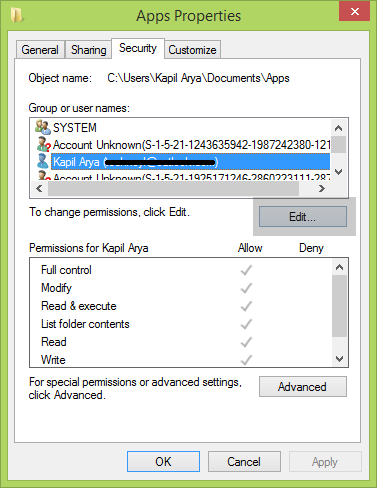
Right-click on the volume and select Properties. Switch to Security tab, under Group or user names, highlight your user account name. Click Edit.


Tick Full control, Modify and other options with a check mark under Allow, then Apply. Click OK to leave. Recheck the status of issue to see if you can access the files now.

3. Perform a full scale virus scan

Scan your whole system with your favorite anti-virus software. After the full scan,restart the computer to check if the problem has been solved.


4. Utilize a recovery software

If the above methods all failed, use a professional data recovery software to save your important files. Remember to save your recovered data into another drive or partition to avoid overwriting. After you get your files back, format the disk partition and the issue should be solved. (Check how to use data recovery software.)


If you are not so sure about recovering data on your own or your data are too important to afford any risk, turn to a professional data recovery company for help. 

Remember, you can always minimize the data-loss risk by regularly backup important files and store them safely away.