Showing posts with label iPhone Contacts Recovery. Show all posts

20170523

iPhone Data Recovery - How to Recover Lost Contacts on iPhone

I updated my iPhone and there was an error. Later I found out some data are missing, including the contact information. This is really awkward because I would have no idea who is calling me without the contact information.What should I do to recover the numbers I stored in my iPhone?

iPhone Contacts lost after updating ios system is not uncommon. Generally, we can restore lost contact from iTunes backups or iCloud - if you have properly backed up your data before. If you don't have any kind of backup file or iTunes is showing error messages, how can we restore lost contact? 
With H Data iPhone Data Recovery Software, the powerful ios data recovery tool, you can easily recover lost contacts on iPhone as well as iPhone in a few clicks. You can also recover other ios data like photos, voice memos, messages, call logs, notes, etc. with the same ease. You can free download the trial version of H Data iOS Data Recovery Software and start to recover your iPhone Contacts.

Method 1. "View and Restore Files from iTunes backups" Mode

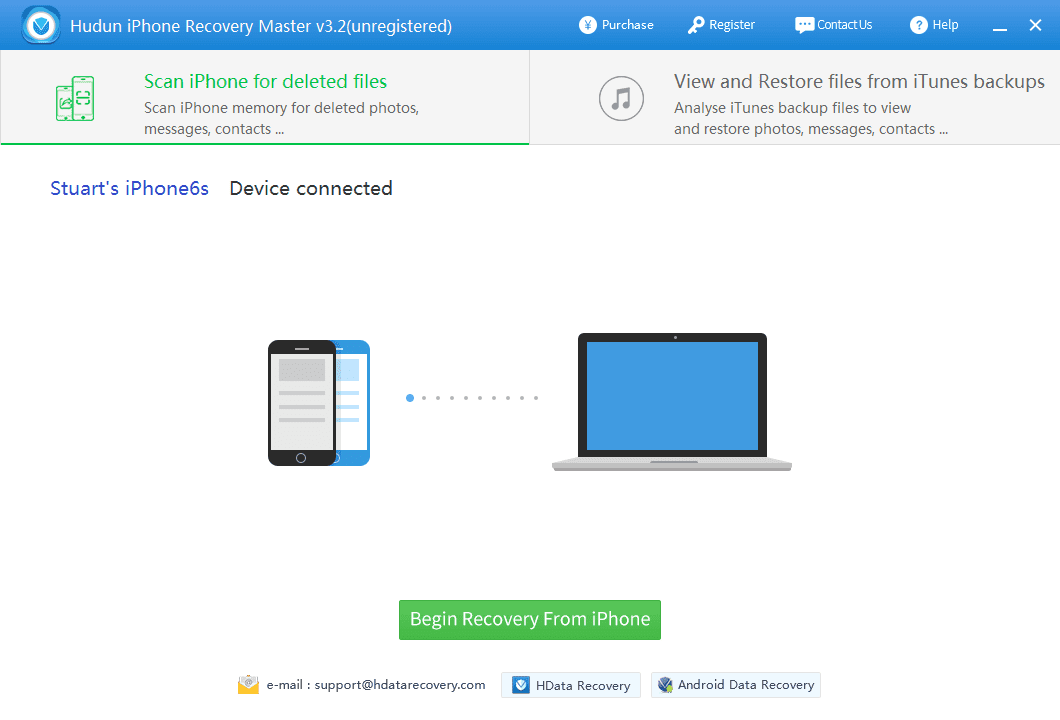
Install and run H Data iPhone Data Recovery Software on your computer and you will see the interface below. Choose the View and Restore Files from iTunes backups mode.
Tips: It is important to act fast when you find out any data loss. Keep using your phone may cause the missing data being overwritten by newly generated files and becoming unrecoverable.

Choose a backup file for data scan. Here all your backups for Apple devices have been searched out. You can select the one for your iPhone and click SCAN to proceed. These files are found in the default directory for iTunes backups. If you have iTunes backups stored elsewhere, you can browse and select them by clicking Browse for iTunes Backups button.
When the scanning is over, the results will be shown in categories, including Photos, Videos, Calendar, Contacts, SMS, Notes, etc. Select Contacts to preview the detailed information like phone numbers, profile pictures, and email addresses. The missing contacts are marked in red color. You can filter the existing ones by checking the Hide Existed box.

Method 2. "Scan iPhone for deleted files" Mode

Recovering data directly from your iOS devices is safe and convenient, and it doesn’t require you to have previously prepared iTunes backup file. Here is how we are going to scan and recover your lost contacts from iPhone with H Data iPhone Recovery Software:
Download H Data iPhone Recovery on your computer, install and launch it. You also need to install the latest version of iTunes if you haven’t before. Connect your iPhone to a computer with an USB cable, select Scan iPhone for deleted files and click Begin Recovery From iPhone button.
1_connect
Keep your iPhone connected until the process is successfully completed.When the scanning process is done, click on the Contact and you will be able to view all the contact information you saved on your phone, even the deleted ones, which are marked in red color.
1_contacts phone

20170517

How to Recover iPhone Contacts After Factory Reset

My iPhone got into recovery mode when I was trying to update my iPhone to iOS 10.3.1. I don’t know what happened and have no idea about how to solve this problem. So I googled and found a solution, which is to restore my iPhone to factory reset. It worked and got the iPhone out of recovery mode, but at the same time made me lost all the data including my contacts information on the device. I didn't know this would happen. Guess I should've hacked up my iPhone in advance. But now it is too late. I just want to know can I recover iPhone contacts after the factory reset?
What is iPhone Factory Reset

Before diving into how to recover iPhone contacts from a factory reset, let's first talk about what is factory settings reset. A factory restore erases the information and settings on your iPhone, iPad, or iPod and installs the latest iOS or iPod software. It will completely wipe your device which is why having a backup before the resetting is so important. A factory reset can help resolve issues with your iPhone or iPad if it's crashing or freezing. Also, before you sell your iOS devices, a factory reset will protect your private information and sensitive data from falling into the wrong hands. Factory reset sometimes just like formatting device or deleting files from your iPhone. 

How to Recover iPhone Contacts After Factory Reset

You can turn to a piece of professional iPhone data recovery software for help. There is various data recovery software out there on market on the internet. It is important for you to choose a reliable one. Otherwise, your data may be corrupted if not handled properly. Here we would recommend H Data iPhone Data Recovery. H Data iPhone recovery is developed especially for iOS devices. It can scan and extract data from iTunes backup files, as well as directly scan the iOS device for deleted information, such as Messages, contacts, notes, calendar events, photos, and so on.

Step 1. Connect your iPhone to a computer with an USB cable, select Scan iPhone for deleted files and click Begin Recovery From iPhone button.
1_connect
Step 2. Wait for some minutes when H Data iPhone Recovery is gathering all deleted information on your iPhone. Keep your iPhone connected before the scan is fully completed.
Step 3: When the scanning process is done, you will be able to see all the recoverable files in their corresponding catalogs. Select Contacts and browse the contact information you want to recover and then click Export Selected Records to save them to your computer.
pics

20170515

How to Recover Deleted Numbers on iPhone

Losing important phone numbers on your iPhone can be a headache. It is even so when you don't have a backup of your iPhone's contents. If you have ever encountered the problem before, this article will help you out. We will show you how you can get the deleted numbers back even if you don't have a backup. Even you do have backups to turn to, restoring an old backup file can effectively mean your current data will be erased and be replaced by the old ones. If you don't want to restore the device, we will offer you a much easier way to do it.
Here are some suggestions you should consider taking before you get down to the actual recovery process. They will greatly increase the chance of getting the deleted numbers back successfully.

Firstly, stop using the iPhone to your best ability. If you keep using your iPhone, the deleted data will very likely be overwritten by new data. Overwritten data is hardly recoverable by any means we can currently access.

Secondly, find the best tool to help you recover the deleted numbers. The best data recovery tool, that will help you get back the missing numbers no matter you have a backup or not, is H Data iPhone Data Recovery Software. Not only is it easy to use but also guarantees that the deleted numbers can be recovered as long as they haven’t been overwritten. Some of its features are displayed as follows:
  • It can recover various types of data including contacts, messages, photos, videos and data from 3rd party applications like QQ, WeChat, and so on.
  • It can be used to directly extract data from an iTunes backup.
  • It comes with a preview function that allows you to browse and preview files before you move to the actual recovery step.
With H Data iPhone Data Recovery Software, you can recover data directly from the device if you don't have a backup, or you can extract data from an iTunes backup if you don't want to restore the device.

Recover Deleted Numbers Directly from the iPhone

Step 1. Begin with installing the program on your computer and launch it. From the main window, select Scan iPhone for deleted files and click Begin Recovery From iPhone button.
1_connect
Step 2. When the scanning process is done, choose Contacts on the left panel. You will be able to view all the contact information. The contacts marked in red color are the deleted ones. You can check the Hide Existed box to view only the deleted contacts.
1_contacts
Recover Deleted Numbers from an iTunes Backup

If you happen to have iTunes backup files, you can directly extract the deleted numbers from your iTunes backups without having to restore your device.

Step 1. From the main window, select View and Recover Files from iTunes Backups. Choose an iTunes backup file and click SCAN. If you have lost your iPhone or your iPhone is not functioning, you can also click Browse for iTunes Backups to manually select an iTunes backup file.
1_itunes restore
Step 2. Wait while the program is collecting data from your iTunes backup. Keep your device connected during the process.
Step 3. When the scanning process is complete, select Contacts and view the deleted numbers you want to recover and then click Export to save them.
1_contacts
With the help from H Data iPhone Data Recovery Software, you can easily and selectively recover the deleted numbers, whether you have a backup or not. Free download and access the trial version for no charge!